
Chat, Explore and prompts
StrideAI Assistant → Chat is the full chat page. It is where most questions start, and every answer explains itself.
Explore what it can do
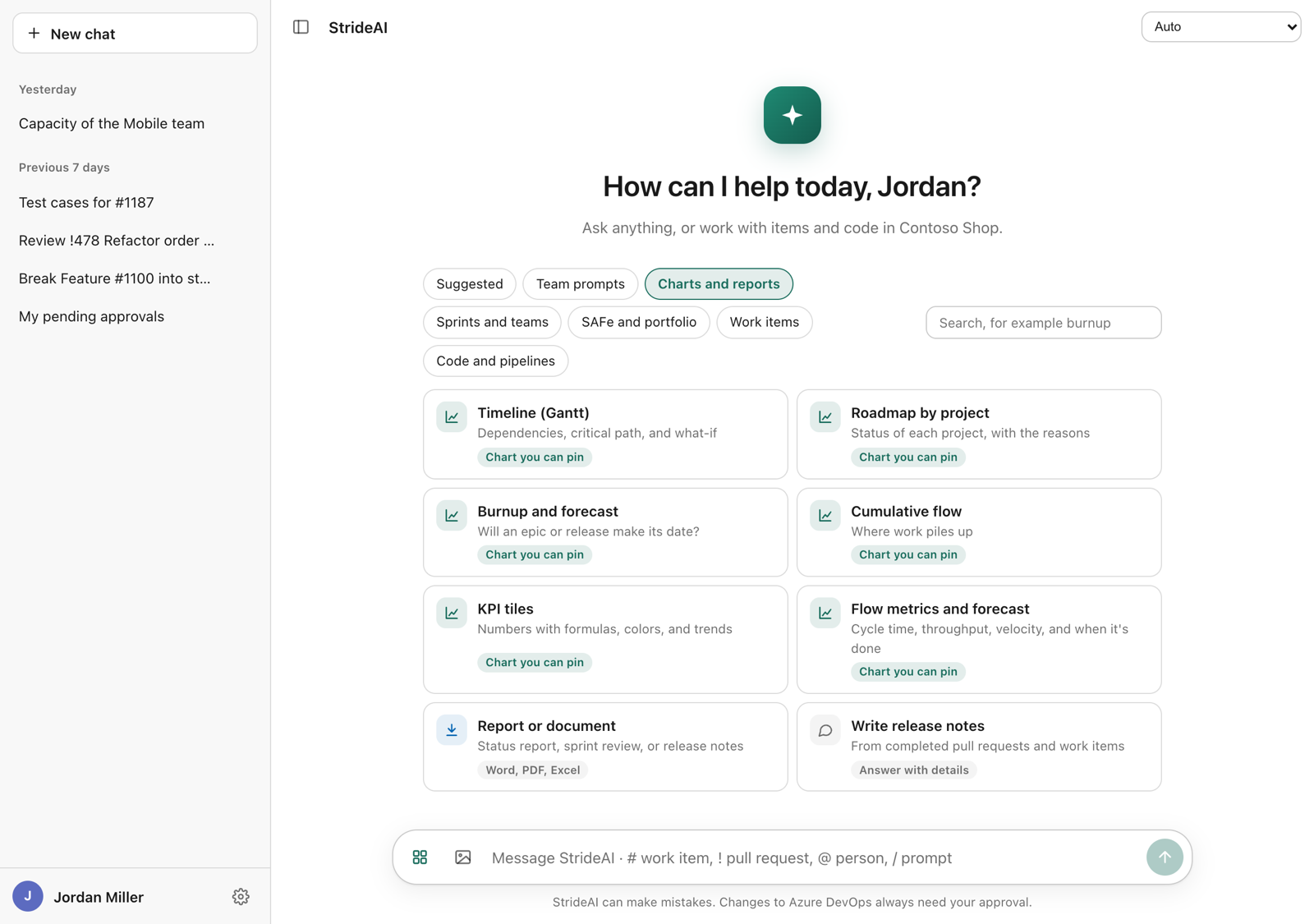
Section titled “Explore what it can do”A new chat shows Suggested prompts and everything StrideAI can do, grouped into Charts and reports, Sprints and teams, SAFe and portfolio, Work items, and Code and pipelines. Each entry says what you get back: a chart or board you can pin, a document for Word, PDF and Excel, a session live with your team such as planning poker, changes after you approve, or an answer with details.
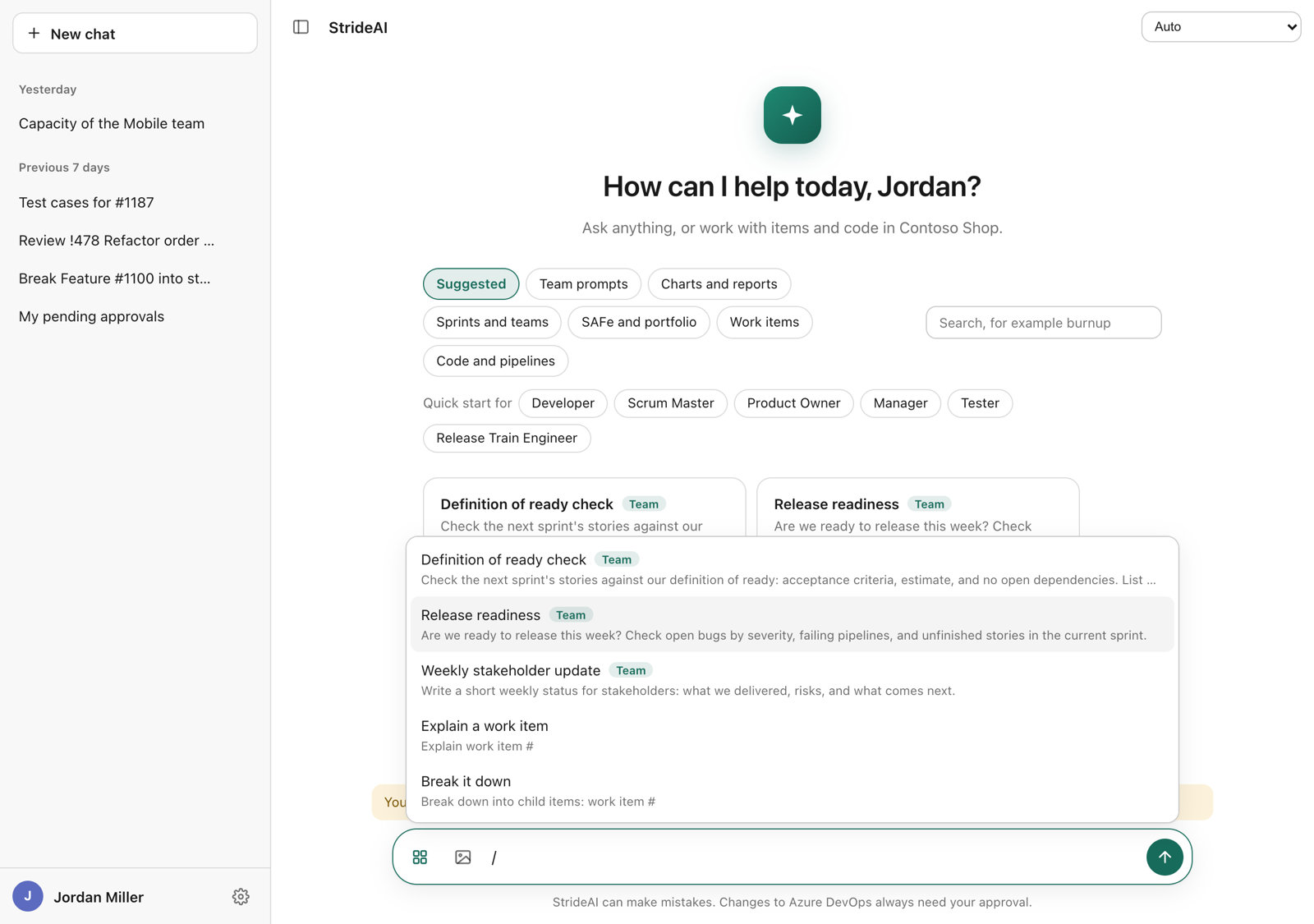
Search for a word such as burnup, or select the grid button next to the message box to open the same list in any chat. Prompts you need to finish, such as with a work item number or a date, go to the message box; the rest are asked right away.
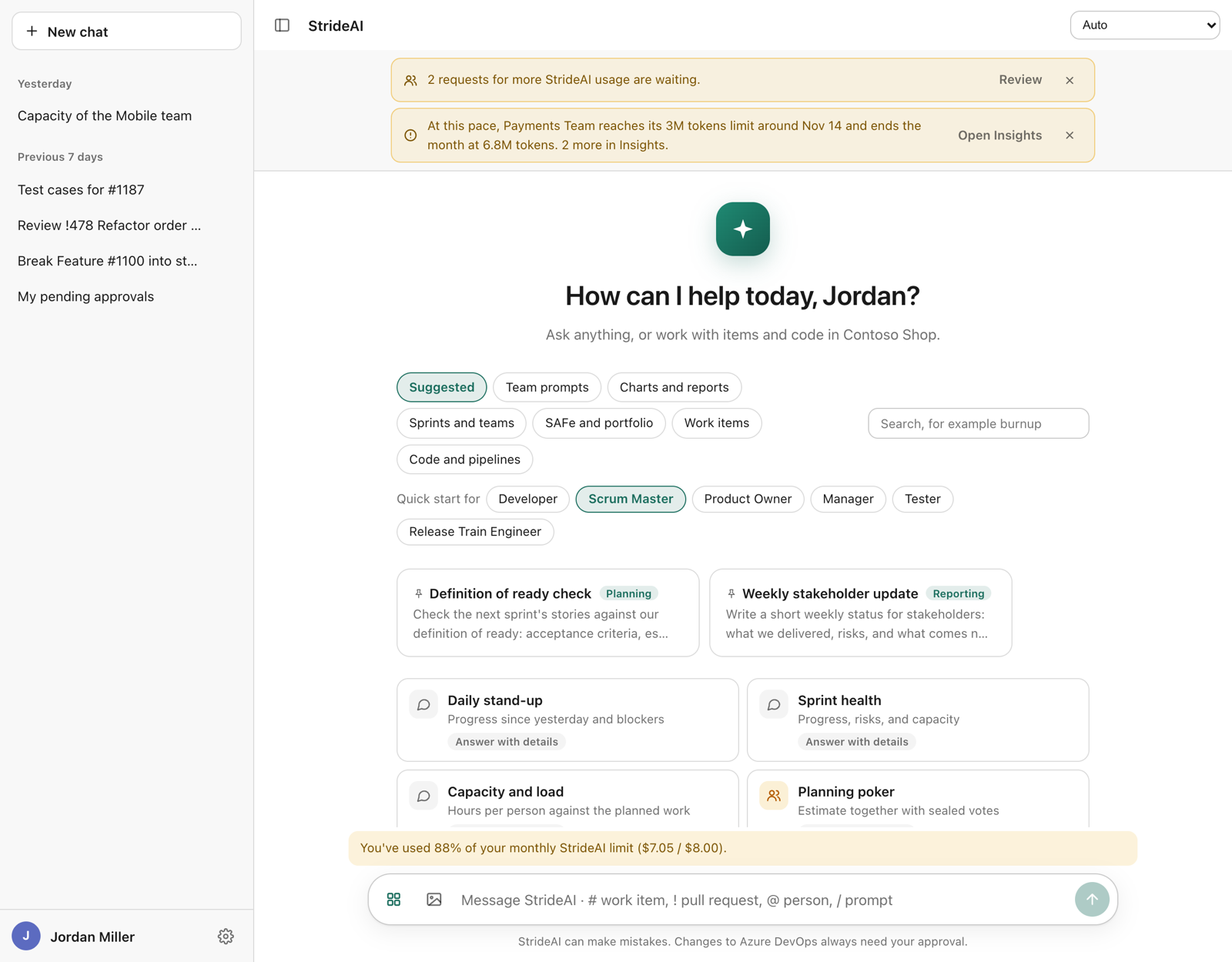
Quick starts for your role
Section titled “Quick starts for your role”Pick Developer, Scrum Master, Product Owner, Manager, Tester or Release Train Engineer to see the six things people in that role ask most, with your team’s pinned prompts first. StrideAI remembers your role; select it again to go back to the suggestions.
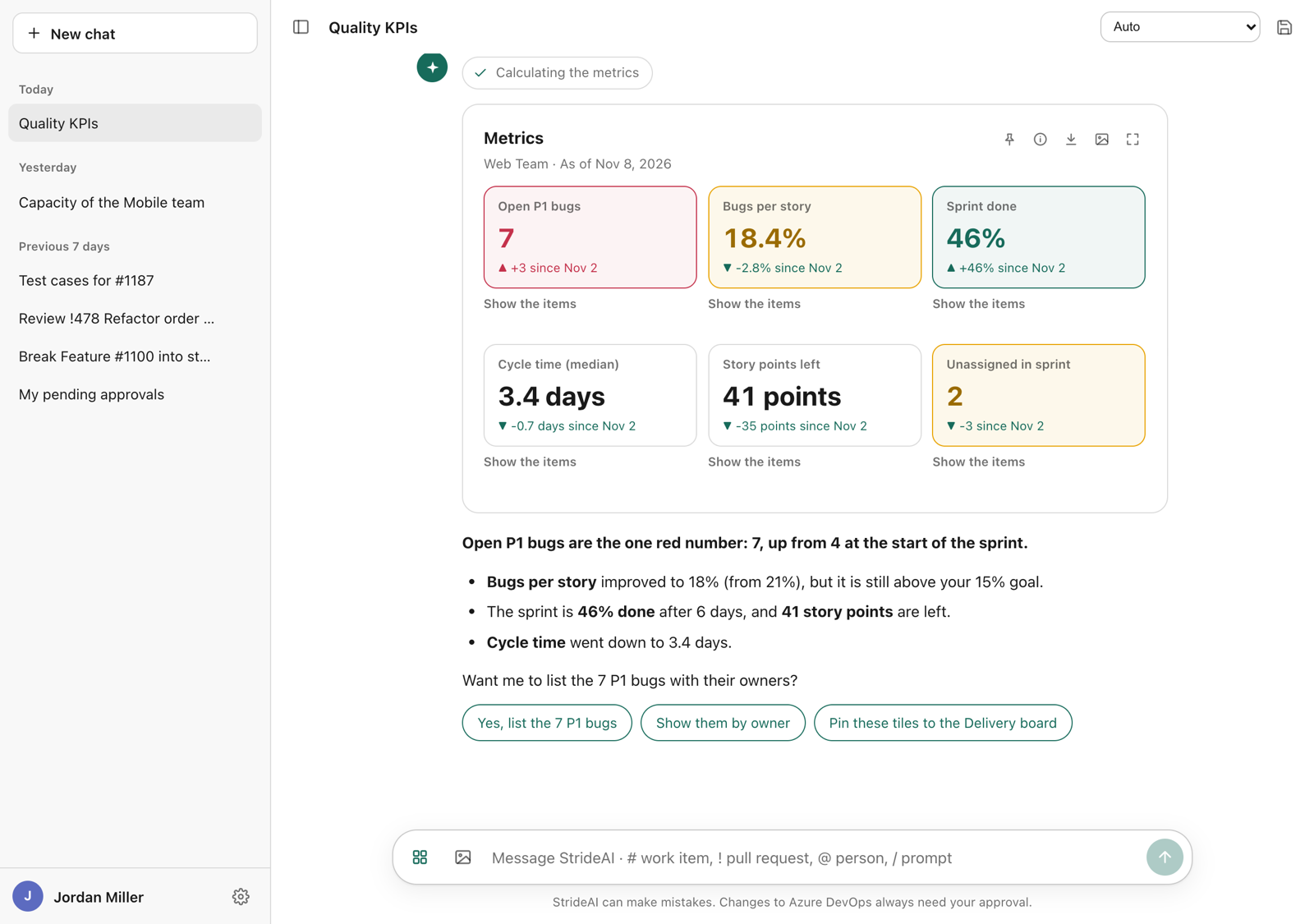
Continue with one click
Section titled “Continue with one click”When StrideAI offers options, such as “Want me to list the 7 P1 bugs?”, they appear as buttons under the answer. After a chart or board, useful next questions appear the same way, such as what is late on a timeline or the risks of a PI.
Want a different answer? Point at it and select Answer again. To change your last question, point at it, select the pencil, edit it, and send; the new answer replaces the old one.
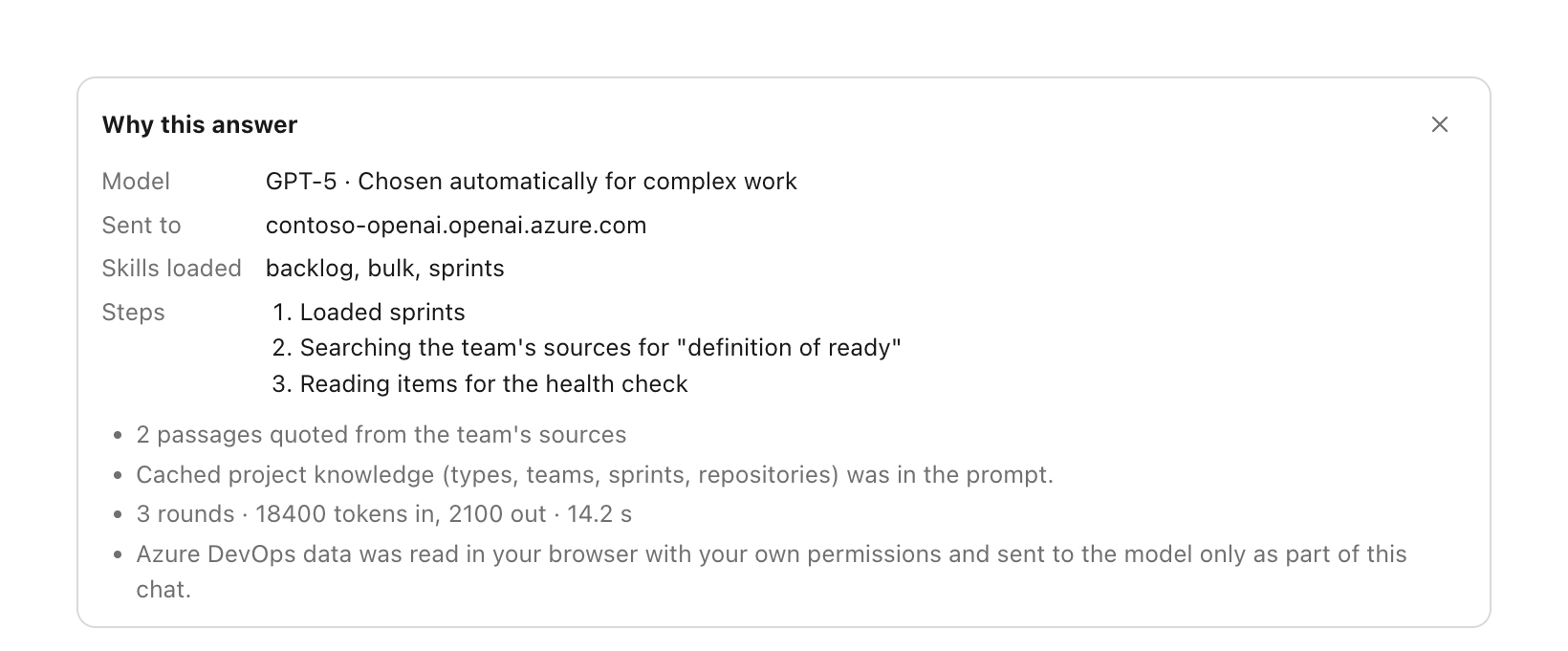
Why this answer
Section titled “Why this answer”Every answer has a small Why this answer panel: which model answered and why it was chosen, where the request went, which skills were loaded, the steps StrideAI took, how many passages came from your sources, and what it cost in rounds, tokens and seconds. Nothing in it leaves your browser.
Pick items and people
Section titled “Pick items and people”Type # for a work item, ! for a pull request, or @ for a person without leaving the chat. Paste a screenshot to log a bug from it.
Team prompt library
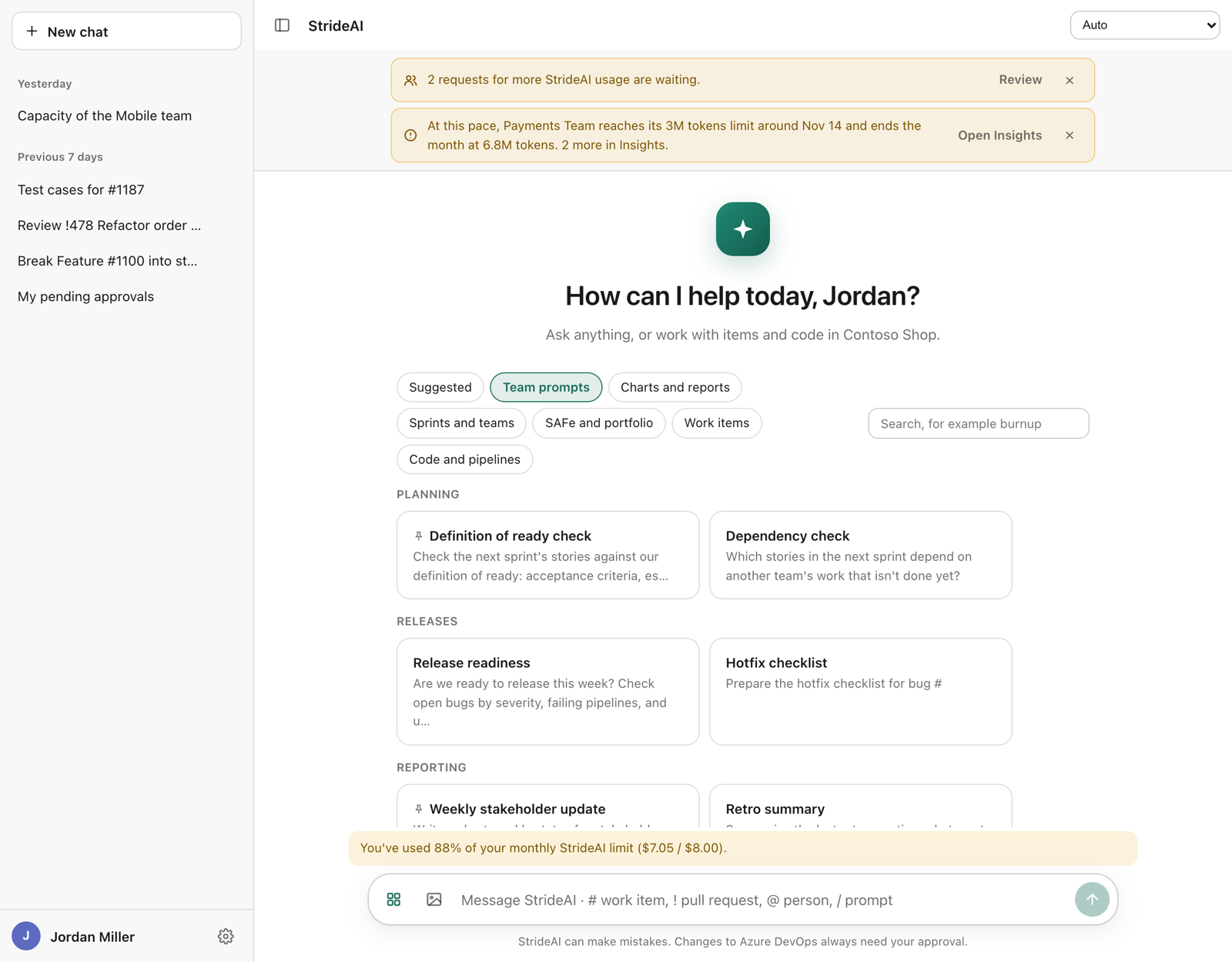
Section titled “Team prompt library”StrideAI managers add ready-made prompts, such as a definition of ready check or a weekly stakeholder update, group them in categories such as Planning or Releases, and pin the most important ones to the top. Everyone sees the pinned prompts first in a new chat and the whole library under Team prompts. Typing / opens them in the message box with their category, together with everything from Explore. Settings shows how often each prompt was used this month and by how many people.
Favourites and history
Section titled “Favourites and history”Star anything in Explore and it moves to Mine, together with the questions you asked recently. Chats are kept in your own browser (the last 100 per project); delete them from the history any time.
Save a chat
Section titled “Save a chat”Save a chat as a work item comment or a wiki page from the chat header, or share it with your team.