
Work items
Studio: one click on the work item
Section titled “Studio: one click on the work item”Open any work item and the StrideAI tab starts with Studio: tiles for the things people do most, one click each. Health check with the lens you pick, Improve, Acceptance criteria, Convert (user story, use case, Gherkin, stakeholder summary), Test scenarios, Break down, Diagram, Wireframe, Change impact, Translate. Each tile opens its own result with the same cards as the chat, and any change to the item still waits for your approval.
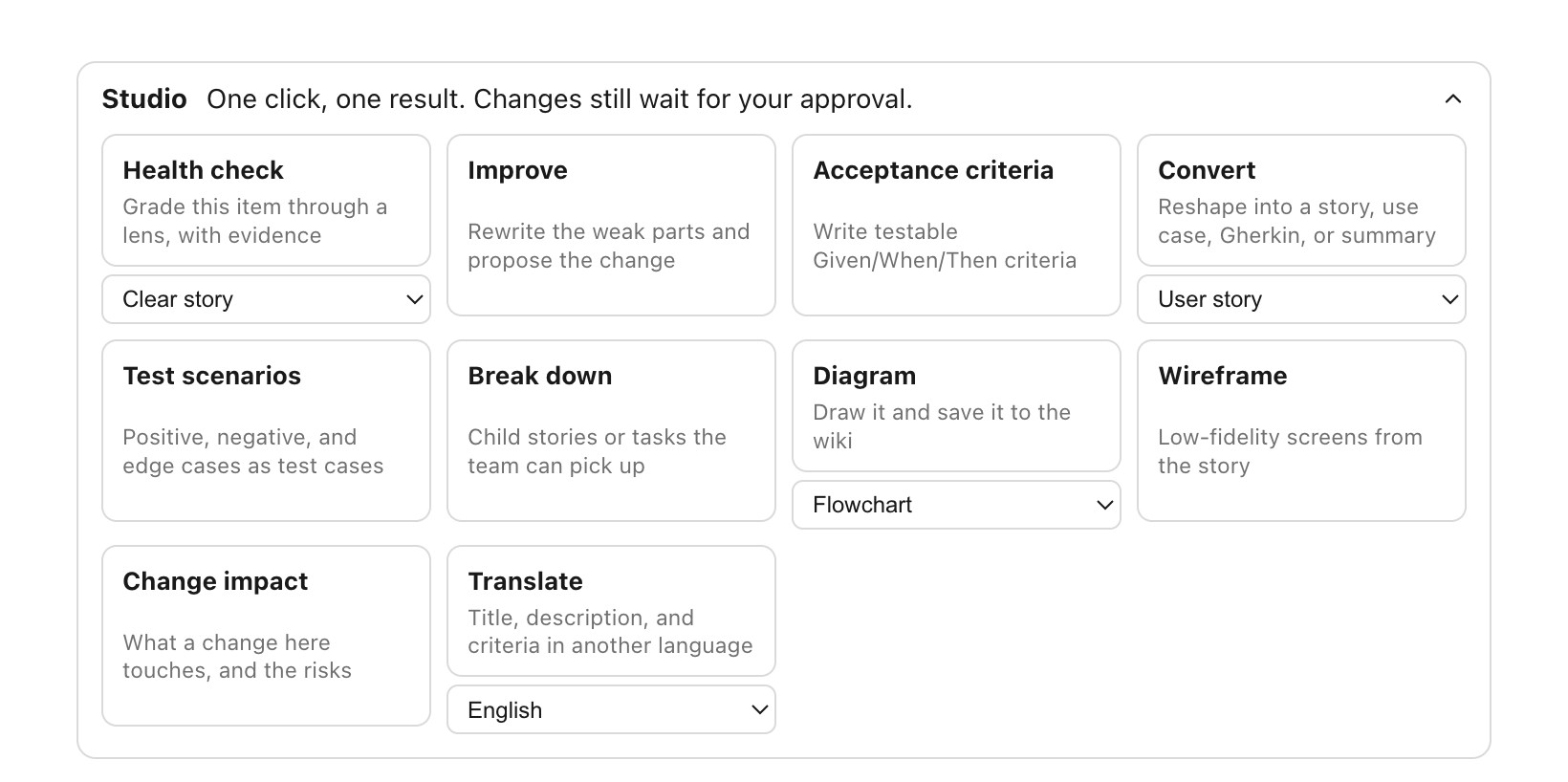
One-click actions above the message box also work on the open item: Break down, Acceptance criteria (testable Given/When/Then scenarios), Estimate with the team (starts planning poker), Find duplicates, and Test cases (linked to the item, with an offer to add them to its test suite).
Plan the work inside a work item
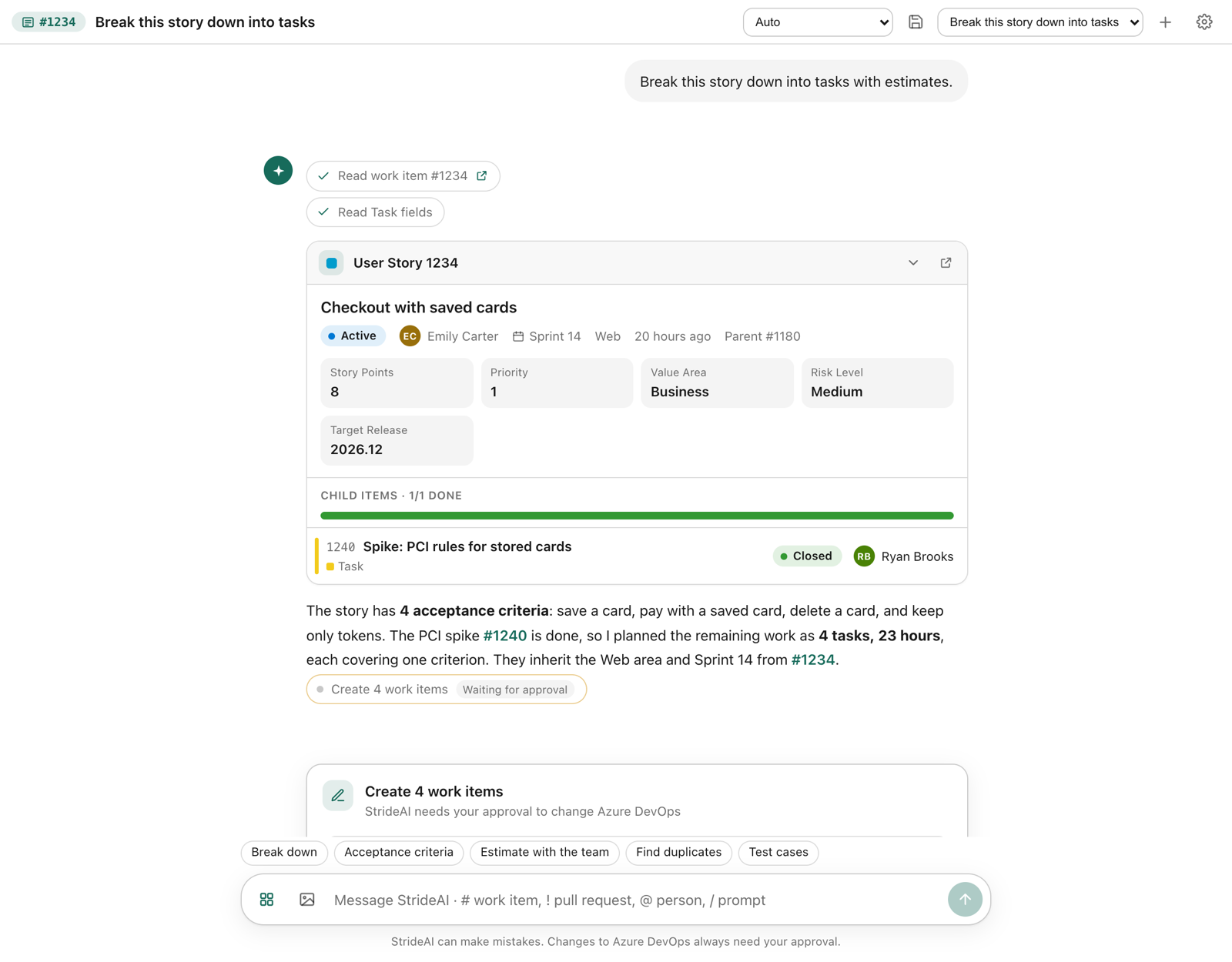
Section titled “Plan the work inside a work item”Ask the tab to explain the item, break it down into estimated tasks, write test cases, or plan the implementation in your code. Changes appear as an approval card; nothing is created until you select Create.
Right-click, done
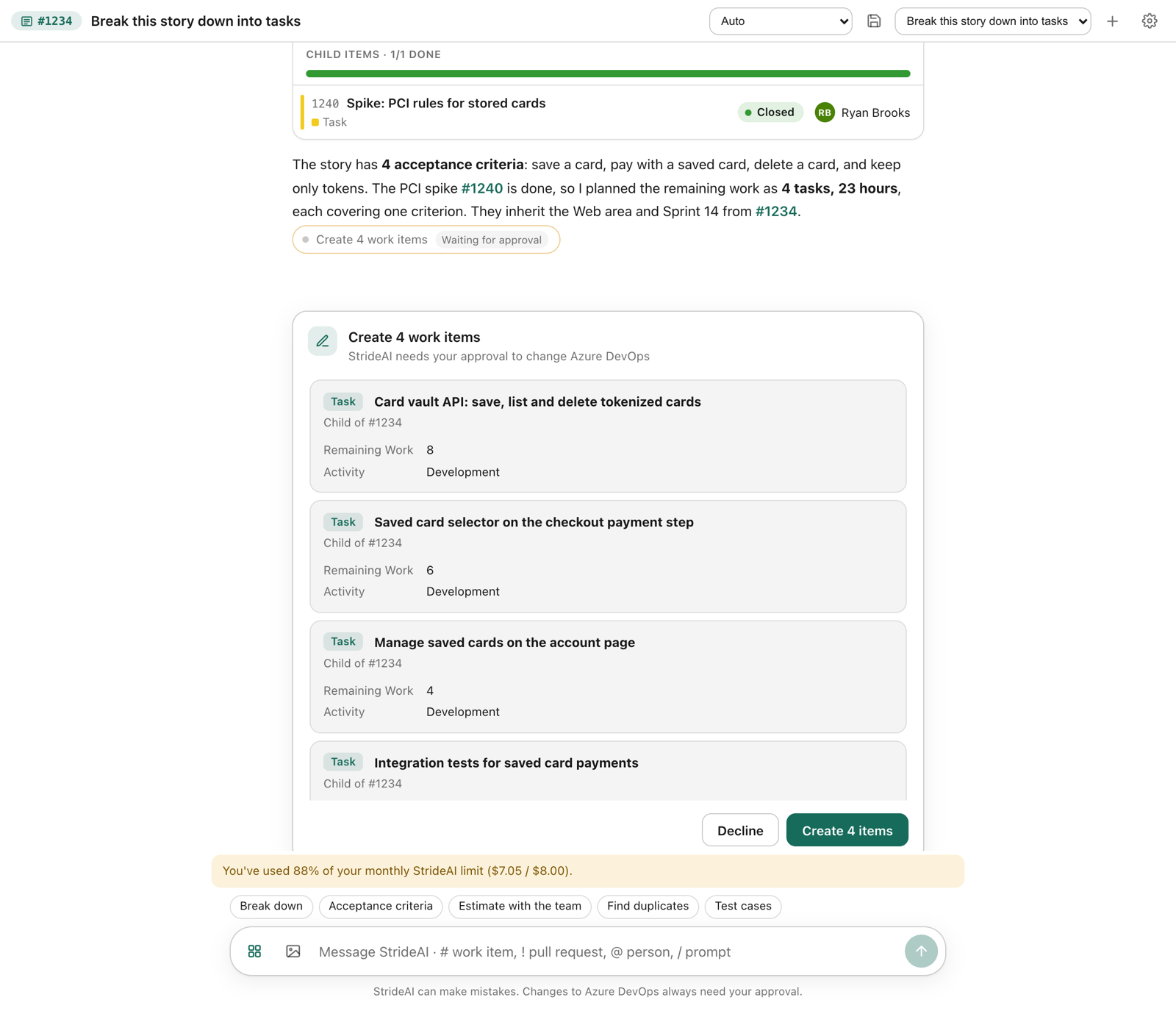
Section titled “Right-click, done”Select items on a backlog, a board, or in query results, right-click, and the StrideAI menu runs a health check, improves them, adds acceptance criteria, translates, writes a digest, or finds duplicates. A saved query has Open in StrideAI Workbench in its menu.
Workbench: one action on a whole sprint
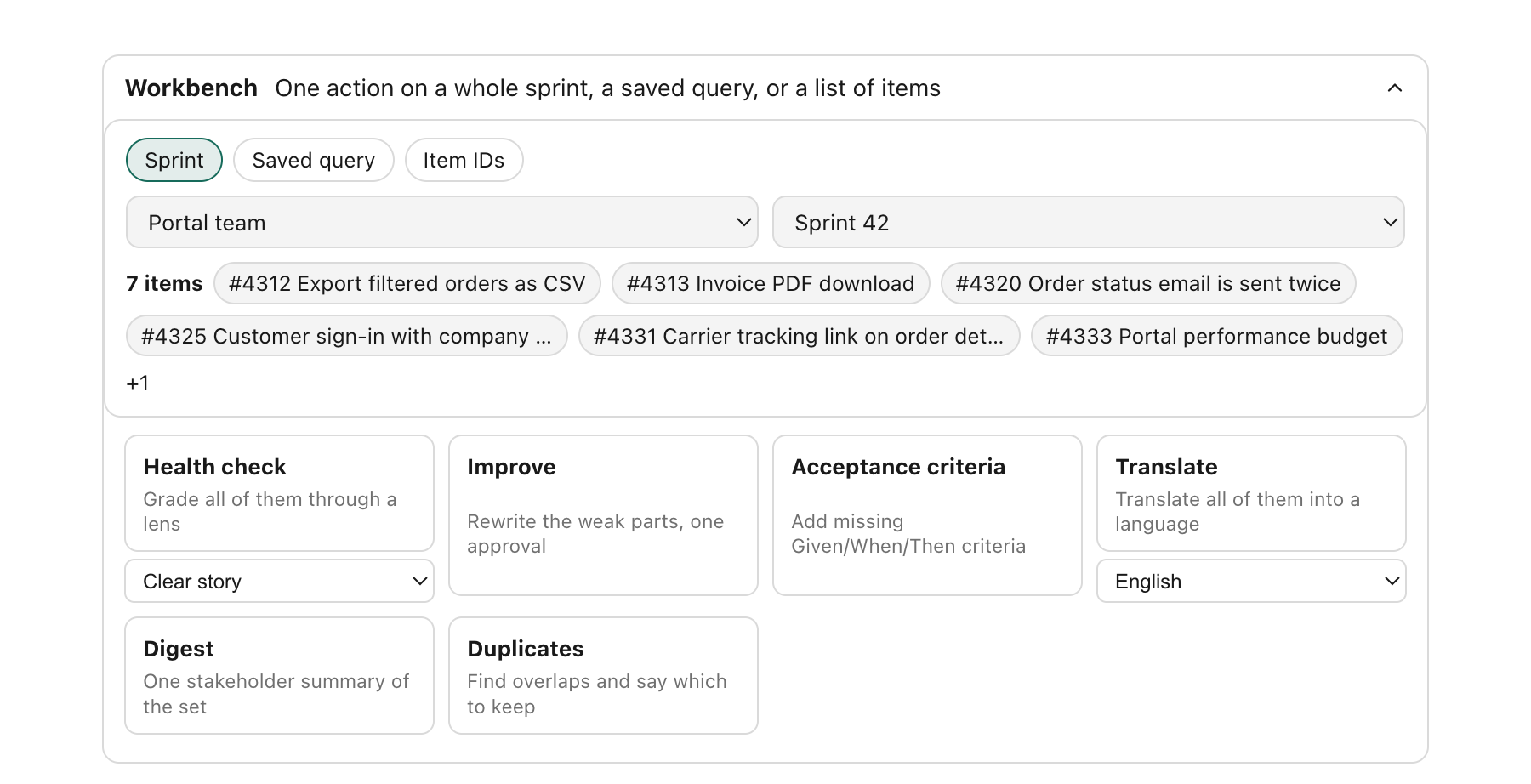
Section titled “Workbench: one action on a whole sprint”In the hub, Workbench takes a sprint, a saved query, or a list of IDs and runs one action on all of them: a health check through a lens, improving the weak parts, adding missing acceptance criteria, translating, a stakeholder digest, or a duplicate sweep. Changes arrive as one bulk run you approve once.
Rewrite with the differences marked
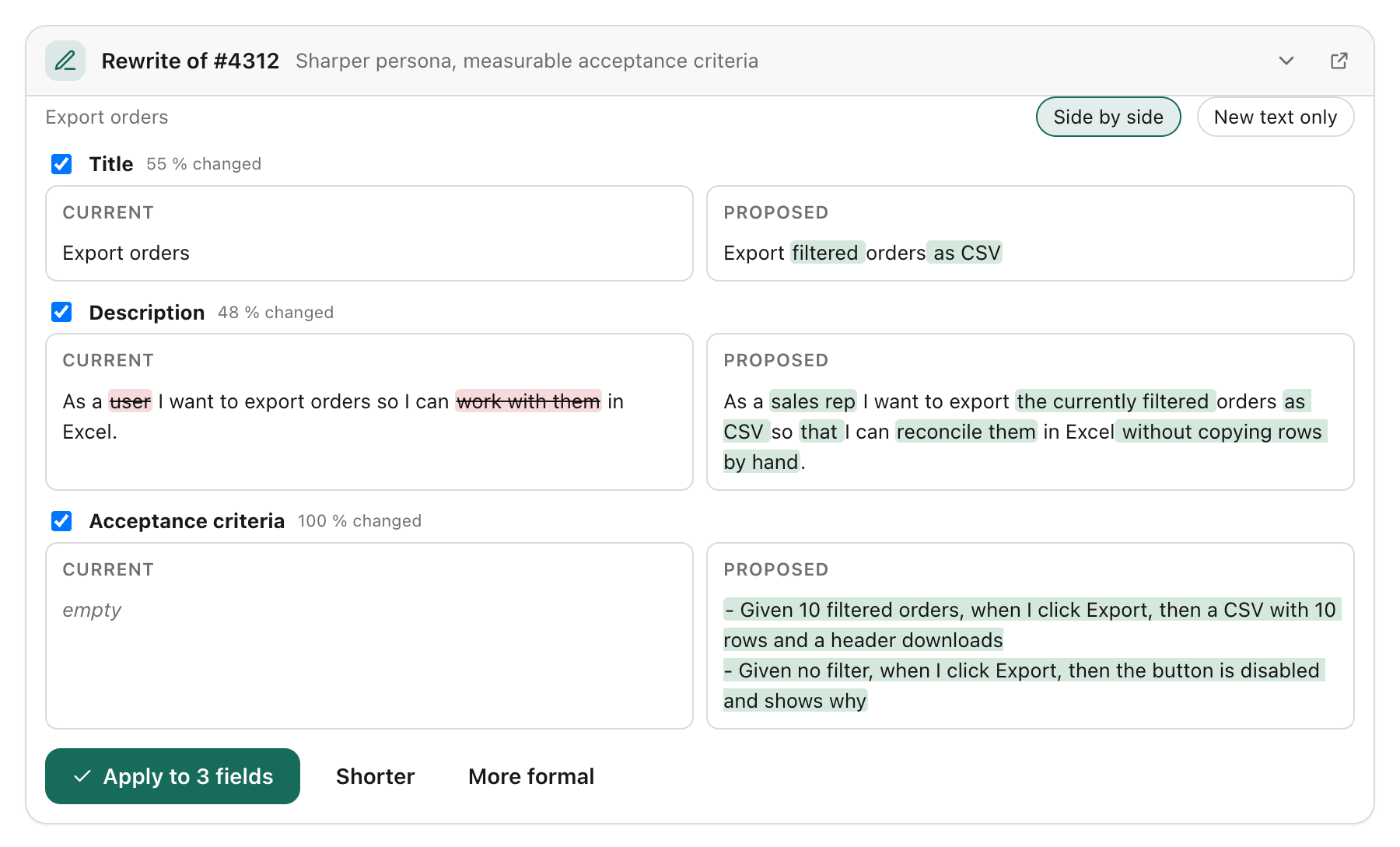
Section titled “Rewrite with the differences marked”Improve, Convert, Translate, or “make this description sharper”: StrideAI shows the current text and the proposed text side by side, field by field, with what it removed and added marked and a percentage of how much changed. Untick a field to keep it, ask for a shorter or more formal version, then Apply.
Tests and code, ready to commit
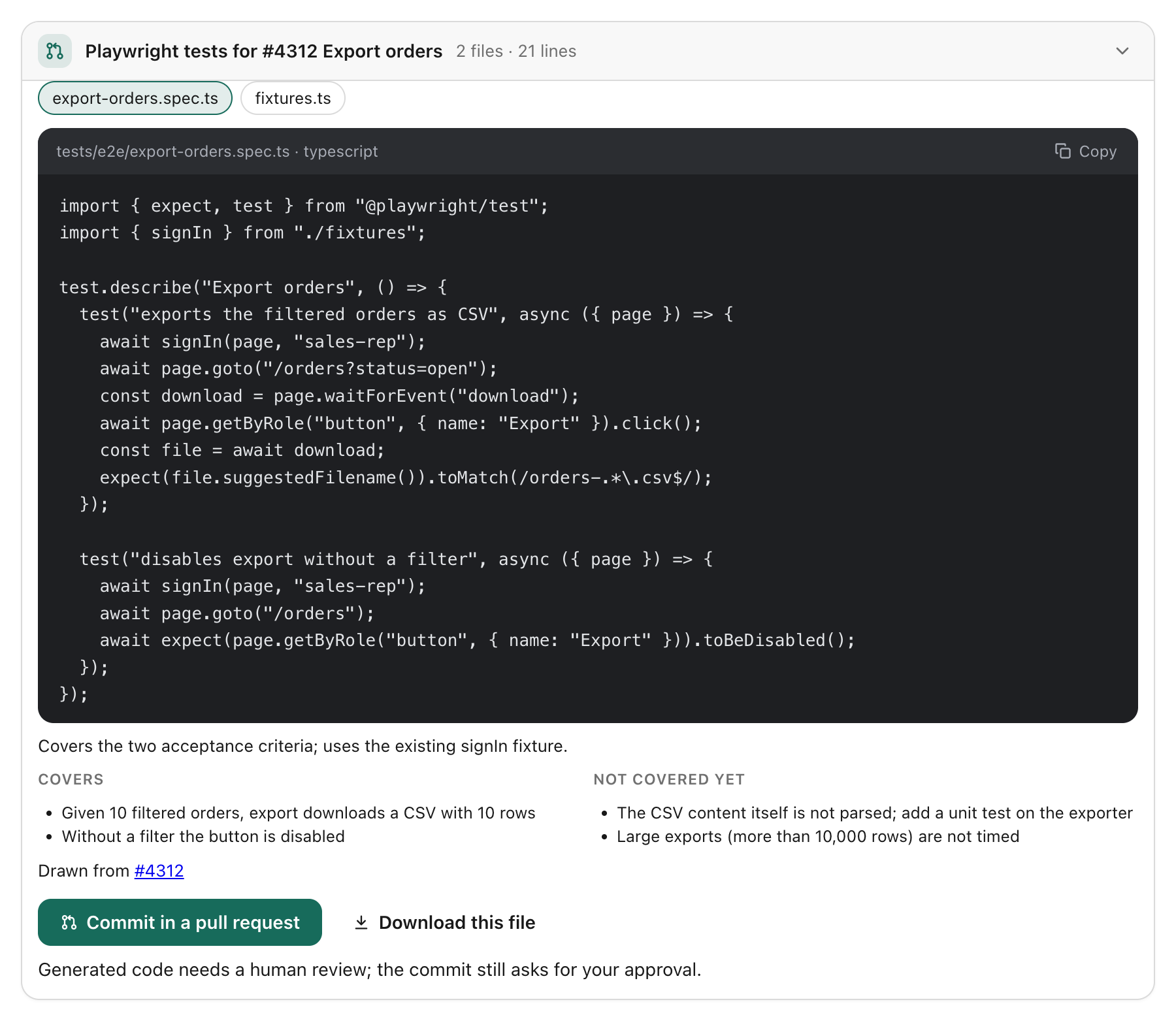
Section titled “Tests and code, ready to commit”“Generate Playwright tests for #4312” or “scaffold the exporter module”: StrideAI reads how your repository does it, writes complete files, and shows them with their paths, what they cover, and what they do not cover yet. Copy a file, download it, or commit all of them in a new branch with a pull request after your approval.
Log a bug from a screenshot
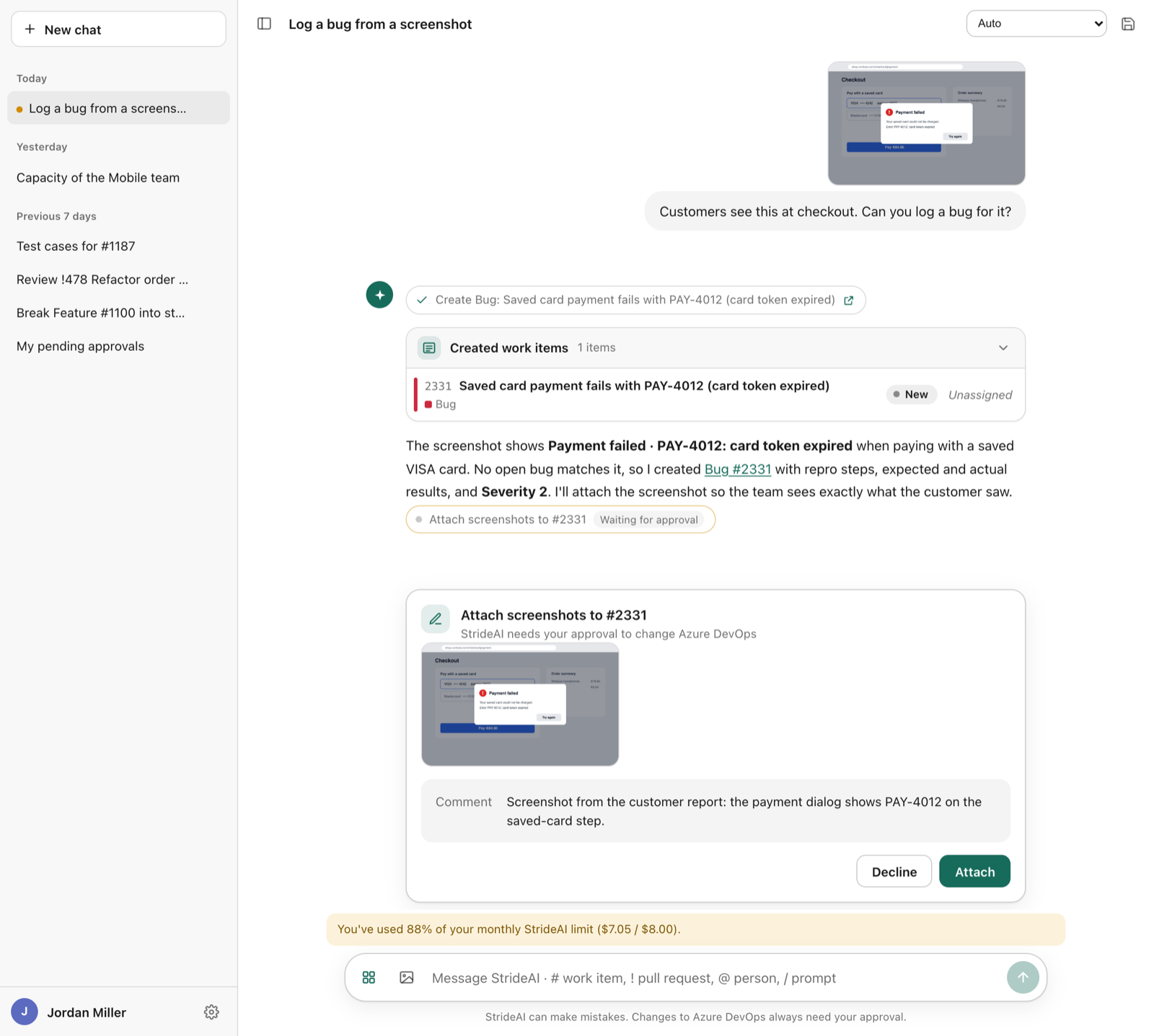
Section titled “Log a bug from a screenshot”Paste a screenshot of the problem and ask “Log a bug for this”. StrideAI reads the error on the screen, checks for duplicates, writes the bug with repro steps, and, after your approval, attaches the screenshot to it.
Custom fields and history
Section titled “Custom fields and history”StrideAI fills your custom fields correctly using Field mapping, updates up to 200 items at once, adds comments, and shows an item’s history. It can never delete work items.